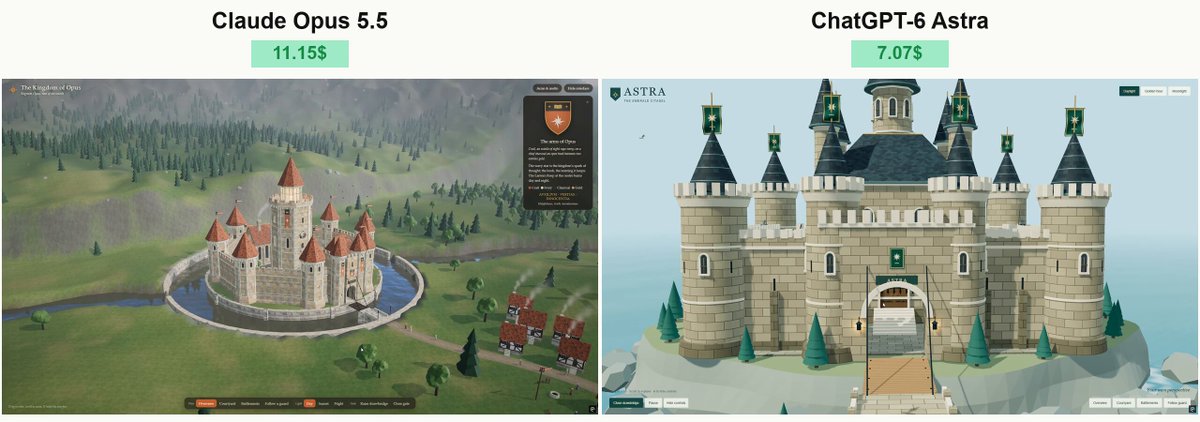
A verified author comment supplies the prompt used for the Claude Opus 5.5 kingdom in the author’s castle comparison. It requests a historically inspired, procedurally built Three.js/WebGL medieval castle and landscape in a standalone HTML file, with heraldry, patrolling characters, animated environmental details, a working drawbridge and gate, camera views, and day-to-night lighting controls.
A starting brief based on the creator's public project, not a verbatim original prompt. Your result will vary.
medieval castlemedieval kingdomThree.jsWebGLinteractive 3D scenestandalone HTMLprocedural geometrydrawbridge
The prompt
Build your own medieval kingdom.
Your kingdom represents Claude Opus 5.5. Design a magnificent, historically inspired castle that expresses this model’s identity through architecture, heraldry, colors and atmosphere. You have complete artistic freedom within a believable medieval setting.
Do not simply place a logo on a generic castle. Give your kingdom a distinctive architectural character and a coherent visual identity. Invent its coat of arms, royal colors and an original heraldic emblem. Display them on animated banners, shields, gate decorations and the clothing of the castle guards. Place the kingdom’s name above the main entrance.
Create a richly detailed, interactive 3D scene using Three.js and WebGL. Deliver everything in one standalone HTML file that opens directly in Chrome.
THE CASTLE
Build a convincing fortress with a central keep, towers, battlements, curtain walls, an impressive gatehouse, a working drawbridge and a courtyard.
Include carefully modeled stonework, arched windows, wooden doors, roof structures, stairs, balconies, iron fittings and small architectural details. Make the structures believable: towers need interiors or convincing depth, stairs must connect to accessible floors, and bridges must have proper supports.
Surround the castle with an attractive landscape that suits your kingdom: cliffs, hills, a river, a moat, forests or a small village. Design a strong composition that looks beautiful from multiple angles.
LIFE AND INTERACTION
Bring the kingdom to life with guards patrolling the walls, villagers moving through the courtyard, gently waving banners, chimney smoke, birds and flickering lanterns.
Let the viewer:
Open and close the drawbridge and main gate.
Follow a guard on patrol.
Switch between a cinematic overview, the courtyard and the battlements.
Rotate and zoom freely.
Change between daylight, sunset and night.
Keep characters on walkable surfaces. Prevent them from passing through walls, doors or one another.
LIGHTING AND ATMOSPHERE
Create cinematic lighting that reveals the architecture clearly. Use soft shadows, atmospheric depth, convincing water where appropriate and restrained post-processing.
At night, illuminate windows, torches and lanterns while preserving enough visibility to appreciate the castle.
Aim for a sophisticated, finished 3D artwork with distinctive architecture and abundant detail. Avoid a collection of obvious primitive shapes or repetitive towers with no architectural purpose.
TECHNICAL QUALITY
Generate assets procedurally wherever practical. Embed textures and other assets inside the HTML. No local server or build step should be required.
Use instancing and geometry batching where appropriate. Keep animation and camera interaction smooth. Provide a minimal, elegant English interface and a button to hide it.
Actually test the result in desktop Chrome. Capture screenshots, inspect the console, test every interaction and fix rendering errors, floating objects, geometry intersections and camera problems.
Make this a castle people would recognize as YOUR kingdom, even before reading its name.
Return the completed standalone HTML file.
How to use this prompt
01
Start with the right workspace
Open your preferred coding assistant or 3D tool. Use the model shown on the example as a starting point, and check any linked project for setup instructions.
02
Choose one thing to change
Swap the subject, art style or setting. Keep the camera and interaction clear. Build a small version first, then refine one detail at a time.
03
Give the scene its own assets
For a custom character or prop, create a 3D model from a short object description or reference image, then bring it into your project.
Previews belong to their respective creators. Check the original source and project license before reusing code or assets.