3DPrompt.
GitHub
Back to the library
GPT-6 AstraReference brief

Orbit Lab: A 3D Simulation of the Sun, Earth, and Moon

This comparison prompt is stated in the linked article to have been given to all four models, including GPT-6 Astra, Sol, and Luna. It asks for an educational 3D simulation web app built with Three.js, featuring procedurally generated models of the Sun, Earth, and Moon, orbital and rotational motion, click selection, camera controls, playback, speed control, focus controls, and more.
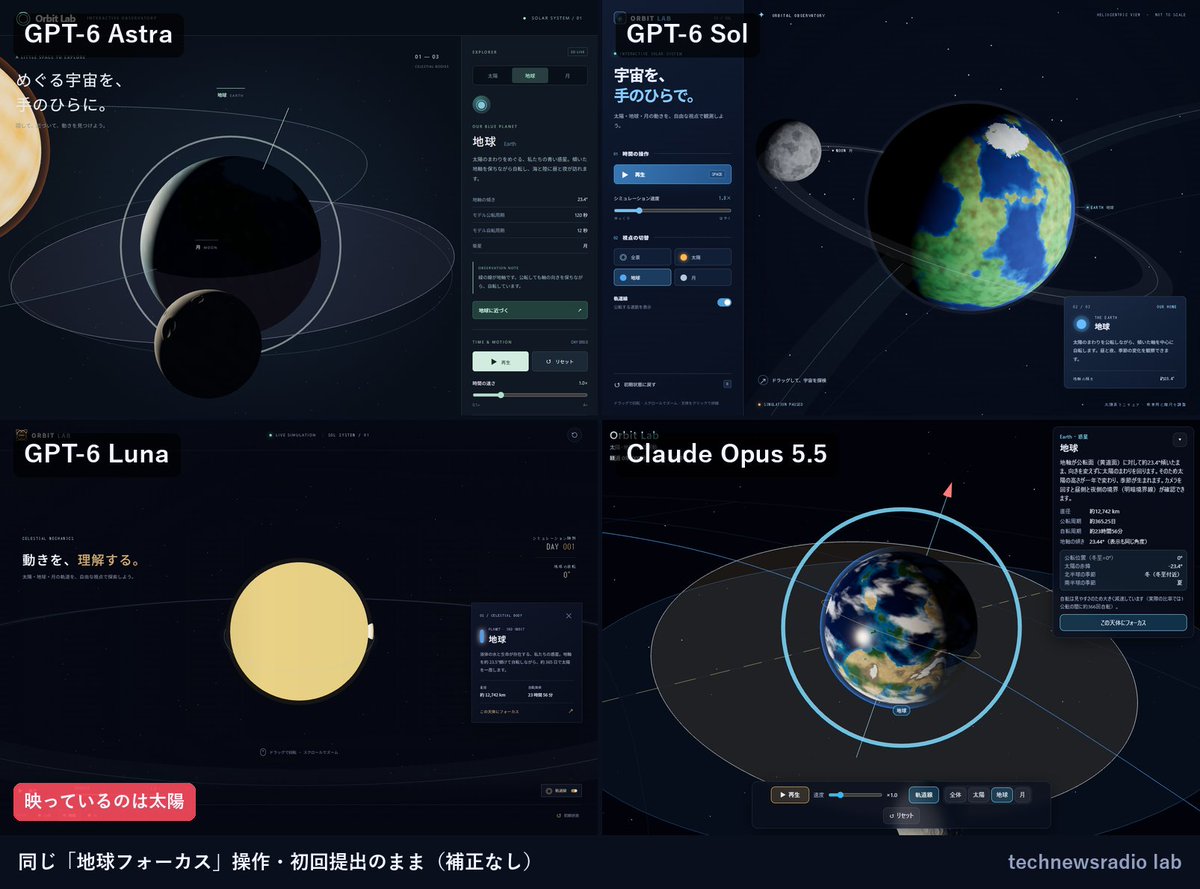
Created by technewsradio.tokyoView original source
Orbit Lab: A 3D Simulation of the Sun, Earth, and Moon

About this example

A starting brief based on the creator's public project, not a verbatim original prompt. Your result will vary.

GPT-6 AstraThree.js3D simulationSunEarthMoonOrbitControlscelestial orbits

The prompt

This is a comparison experiment. Implement and complete the following web app with the exact same specifications in your working directory. Name it “Orbit Lab.” Use Three.js 0.186.0 and load the core library and OrbitControls at the same version (either via a CDN import map or npm is fine). There is no need to publish or deploy it. Requirements: 1. Represent 3D models of the Sun, Earth, and Moon using procedural geometry and materials. Do not use external images or 3D assets. Use the Sun as a point light so that the lighting on Earth and the Moon is visible as the camera moves. 2. Animate Earth’s orbit and rotation, its axial tilt, and the Moon’s orbit using delta time. Visualize the tilt of the orbital plane and display orbit lines for Earth and the Moon. The scale and speed may be exaggerated for educational purposes. 3. Generate a reproducible starfield background using a seeded random number generator. Use OrbitControls for rotation and zoom. Clicking a celestial body must change its selected state and the information panel. 4. Include play/pause, a speed slider, an orbit-line visibility toggle, camera focus controls for the Sun, Earth, and Moon, and a button to restore the initial state. Play/pause and reset must also work from the keyboard. 5. Make the interface usable on smartphone-width screens, provide a message for browsers without WebGL support, handle resizing, and cap the pixel ratio to avoid excessive rendering load. 6. Add startup instructions and controls to the README. If possible, launch the app and verify that it works; if not, clearly state why. In the completion report, briefly list the files created, implemented features, and verification results. Do not ask questions during the process. Make reasonable decisions and implement everything through to completion.

How to use this prompt

01

Start with the right workspace

Open your preferred coding assistant or 3D tool. Use the model shown on the example as a starting point, and check any linked project for setup instructions.

02

Choose one thing to change

Swap the subject, art style or setting. Keep the camera and interaction clear. Build a small version first, then refine one detail at a time.

03

Give the scene its own assets

For a custom character or prop, create a 3D model from a short object description or reference image, then bring it into your project.

Previews belong to their respective creators. Check the original source and project license before reusing code or assets.