3DPrompt.
GitHub
Back to the library
GPT-6 AstraReference brief

Golden-hour Roman battlefield set piece

A detailed Blender task for a realistic golden-hour Roman battlefield scene based on a supplied concept image. It specifies a boulder-ringed 1v1 arena, detailed bump-mapped ground, procedural assets where possible, a golden-hour skybox, harsh shadows, reusable GLB assets, and delivery of the .blend file plus a build timelapse.
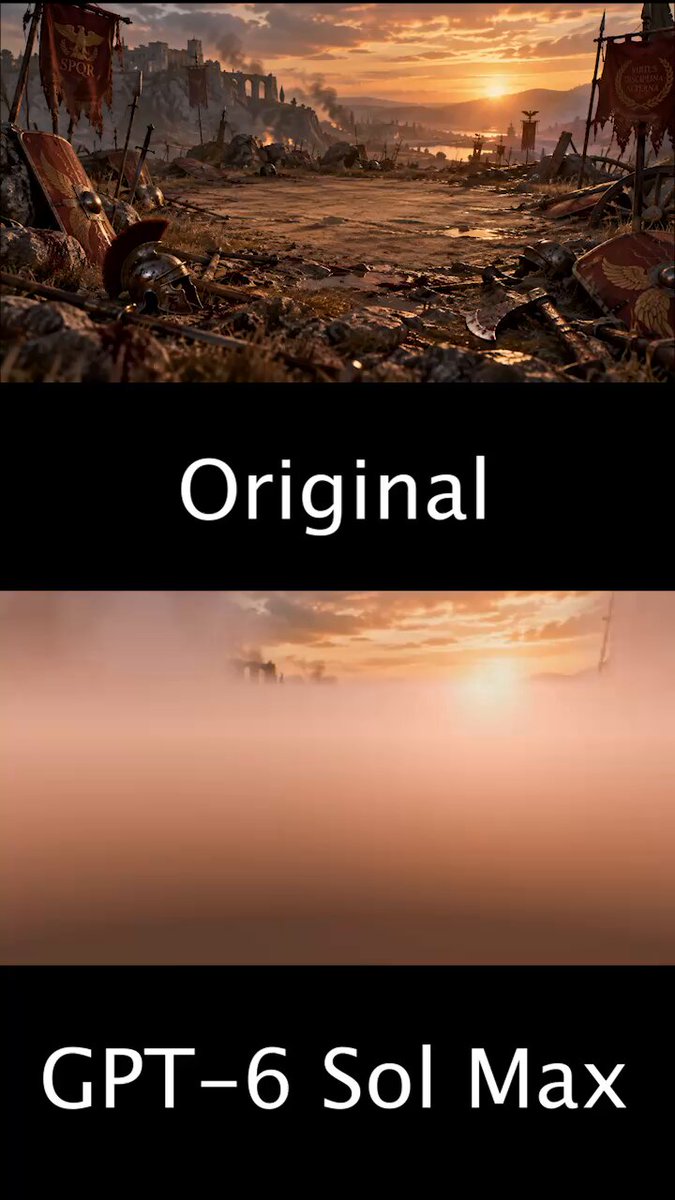
Created by tonysuriView original source
Golden-hour Roman battlefield set piece

About this example

A starting brief based on the creator's public project, not a verbatim original prompt. Your result will vary.

BlenderRoman battlefieldgolden hour3D sceneenvironment artrealistic render1v1 arenaprocedural assets

The prompt

THE TASK Build a golden-hour Roman battlefield set piece in Blender from the supplied concept image. Generation is allowed. You may generate 3D models for the environment and its parts with the available generation tools (Tripo on https://t.co/JV0K8OtuWC) and assemble them. Everything must still form one coherent scene: matched scale, consistent materials, and unified lighting. Requirements: Use bump maps on the ground and keep the ground highly detailed. Create a circular empty spot on the ground with large boulders around it to form a 1v1 arena. Render everything realistically. Create assets procedurally where possible. Create a skybox for golden-hour sky. Use harsh shadows. Reuse objects (flags, banners, helms, rocks, etc.). Export a GLB for every object and reuse those assets. Match the supplied image as closely and accurately as possible. TIMELAPSE REQUIREMENT While you build, save a viewport screenshot into a numbered timelapse/ folder after every meaningful addition (each new object, modifier pass, material step, and lighting step, in order). When the work is finished, assemble those frames into a timelapse video at 2 fps (0.5 s per frame) so the full build can be watched from start to finish. Deliver the timelapse video with the main files. DELIVERABLES The .blend file, with camera and viewport set so the view exactly matches the original image. The build timelapse video.

How to use this prompt

01

Start with the right workspace

Open your preferred coding assistant or 3D tool. Use the model shown on the example as a starting point, and check any linked project for setup instructions.

02

Choose one thing to change

Swap the subject, art style or setting. Keep the camera and interaction clear. Build a small version first, then refine one detail at a time.

03

Give the scene its own assets

For a custom character or prop, create a 3D model from a short object description or reference image, then bring it into your project.

Previews belong to their respective creators. Check the original source and project license before reusing code or assets.